
Key takeaways
- To start, you need a smartphone or tablet, the app from the App Store or Google Play and the 7-day free trial. No bank account is needed: no real money flows through Pepp, and the pot is a counter.
- Your first quest takes six steps: create your family, add your child (by QR code on their own phone or in kids mode on your device), create a quest with title, reward and type of proof, your child does it, you approve – and the pot fills up.
- Start with one to three small extra jobs – taking the bottles to the recycling bins, vacuuming the car, cleaning the bikes – and deliberately leave basic responsibilities like their room or the table out. Rewards of $0.50–3 or 15–30 minutes of screen time are plenty.
- Screen time can be limited with a weekly goal and a daily cap; quests with minutes as a reward come on top of that budget. Payouts happen outside the app – in cash or into a savings account.
A family chore app is only as good as the first week you use it. If setup takes an hour and the first chore is still open three days later, the app ends up in the folder with all the other good intentions. So this guide is about exactly one thing: your first quest in Pepp – from installation to the first reward in the pot – in about five minutes. Plus three quest templates that work for most families, how to set up screen time, how payouts work, and the stumbling blocks families trip over most in the first weeks. Pepp is available in English and German on iOS and Android.
What you need to use the family chore app
The list is short. You need a smartphone or tablet – iOS or Android – and the app from the App Store or Google Play. The first 7 days are free, without paying anything up front, and you get a reminder before the trial ends. You don’t need a bank account, and your child certainly doesn’t: no real money flows through Pepp. The pot, where rewards collect, is a counter – you handle the payout, outside the app.
What you also need isn’t in any app: an idea of which jobs earn a reward in your family and which don’t. The rule of thumb from should kids get paid for chores: basic responsibilities like their room, the table or their own laundry stay unpaid and don’t belong in the app. Quests are extra jobs – things you would otherwise do yourself. Once you have decided that, the rest really does take five minutes.
Tip
Create the first quest with your child sitting next to you. They see how the reward comes about, get a say in the job and understand the flow – mark as done, proof, approval – from the first minute. That saves you most of the questions in the first week.
Step by step: from installation to the first reward in the pot
- Create your family. Open the app and create your family account. As parents, you run the account; all amounts, limits and settings are yours, protected by a PIN. A second parent can join the same family and sees and manages the same things.
- Add your child. In parent mode, add a child by name. If your child has their own device, show them the family QR code; they scan it and join. If not, they use kids mode on your device: a separate, PIN-protected view from which they can’t get into your settings.
- Create your first quest. Give the quest a title that describes what “done” looks like – “Take the bottles to the recycling bins”, not “help out”. Attach a reward: an amount of money or screen time in minutes. Choose the type of proof – a photo if you want to see the result, a tap if a check mark is enough. And decide whether the quest is one-off or recurring, for example every week.
- Your child does the quest. In their view, your child sees the quest with its reward, accepts it, does it and sends the proof – a photo of the empty bottle crate, or a tap.
- Approve or send back. The proof lands with you. If it’s fine, you approve it. If it isn’t – the photo shows a half-full crate – you send it back. Sending back doesn’t mean redoing the job: your child just adds the proof.
- The pot fills up. On approval, the reward goes into your child’s pot. Your child sees the new balance right away – and you have your first quest behind you. You can also set up the allowance itself as a recurring credit: choose the amount and the rhythm once, and it lands in the pot automatically, independent of quests.
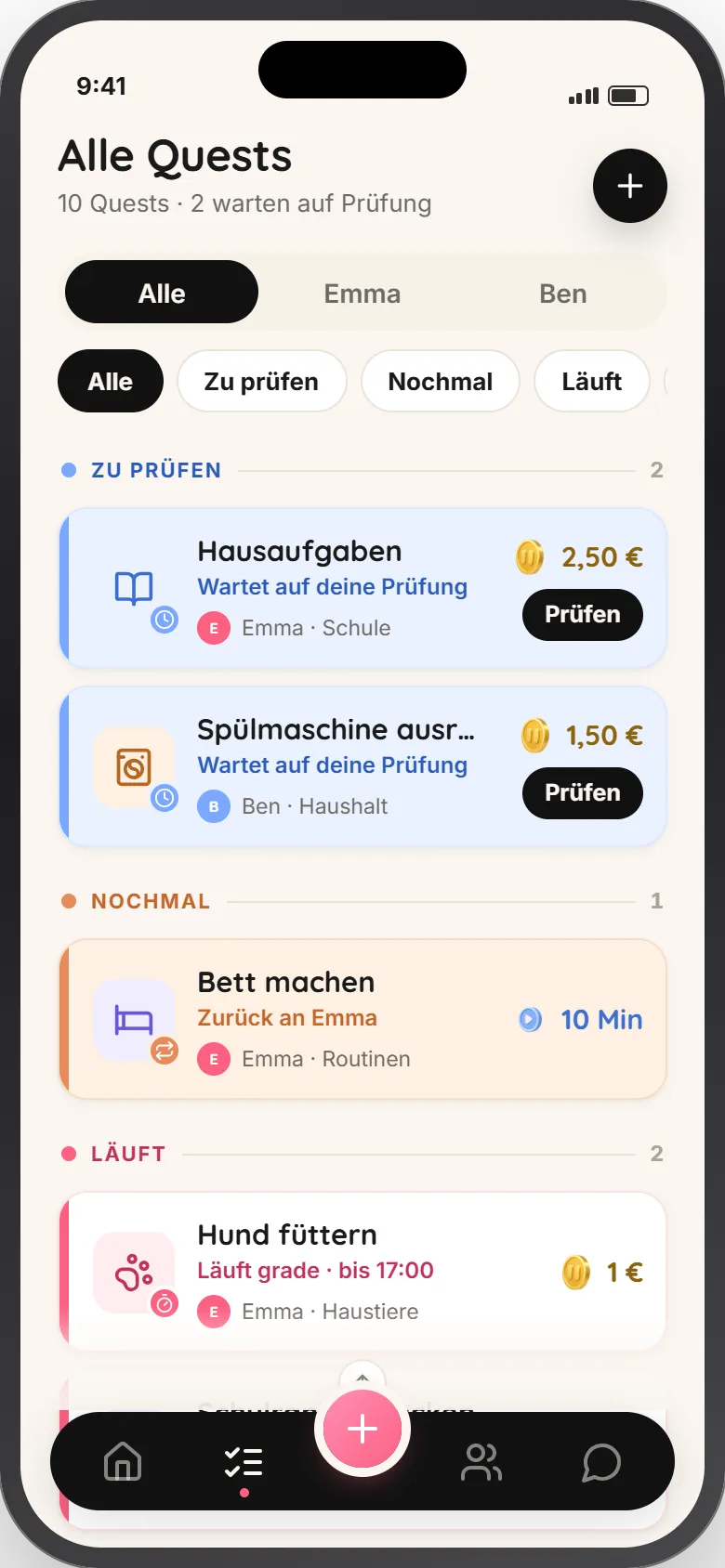
Parent mode shows your quests by child and status: open, proof received, approved. From here you create new quests and review proof.
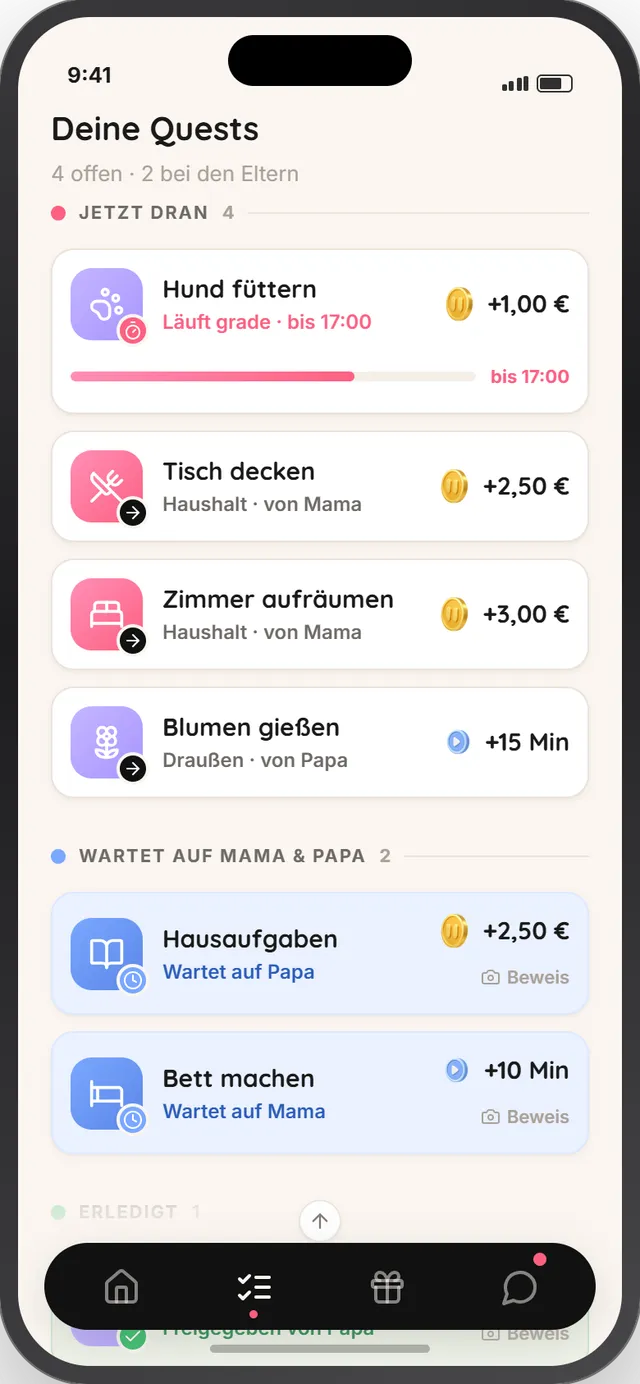
In their view, your child only sees what concerns them: their quests with rewards, what is still open and what is already in the pot.
A note on step 3: the title decides the discussion in step 5. “Clean your room” is an argument waiting to happen, because you and your child mean different things by “clean”. “Floor clear, bed made, desk empty” is a quest a photo can prove. The more concrete the title, the less often you have to send something back.
Pepp
Chores, allowance and screen time in one place
Pepp turns chores into quests. Your child collects rewards, you keep the overview – no bank account, no card.


Three quest templates to start with
The first quest should be small, concrete and quick – your child should experience the whole flow once before it comes to mowing the lawn. These three templates work in most families; the amounts sit within the ranges from should kids get paid for chores.
| Quest | Age | Reward | Proof | Rhythm |
|---|---|---|---|---|
| Take the bottles to the recycling bins | 7+ | $0.50–1 or 15 minutes of screen time | Tap | recurring, every week |
| Vacuum the inside of the car | 9+ | $2–3 or 30 minutes of screen time | Photo | one-off, create again when needed |
| Clean the family’s bikes | 8+ | $1–2 per bike, up to $3 in total, or 30 minutes | Photo | one-off, in spring and fall |
All three are extra jobs: no child would do them without being asked, and none of them is something your child should be doing for themselves anyway. If your first quest is “Set the table” instead, you are moving the line between basic responsibility and extra – and soon your child will ask what they get for brushing their teeth. How to build a reward system that holds this line and makes itself unnecessary after a few weeks is covered in its own guide.
Money or screen time? Money for bigger jobs that translate naturally into dollars; screen time for small ones, where 50 cents feels odd but 15 minutes makes immediate sense to a child. Many families mix both – and let their child help decide the currency for recurring quests.
Setting up screen time: weekly goal and daily cap
If you want to use screen time as a reward, set it up per child in parent mode. You set a weekly goal and a daily cap; minutes your child earns come on top, as you agree. The weekly goal is the budget your child gets with no strings attached – for example 6 hours a week for a 10-year-old. The daily cap stops the whole budget from disappearing in one day – say 2 hours, deliberately well above the daily average of under an hour, so a movie night still fits.
Minutes earned through quests are an extra on top of that budget. That is the key point: your child gets the agreed screen time because they are part of the family – just like allowance. What they earn on top is a bonus, and it should be clearly smaller than the base. Which values fit which age, and when screen time as a reward does more harm than good, is covered in detail in screen time as a reward. If you notice that screen time is tipping over anyway, signs of too much screen time helps.
Watch out
Set the screen time limits before you approve the first minutes quest – not afterwards. If you hand out minutes first and add a cap later, it feels to your child like something is being taken away. The other way round, it is a bonus.
Paying out: cash or a savings account
The pot counts what your child has earned – it doesn’t hold any money. When your child wants to cash out, they send you a request, and you confirm it. The money itself moves outside the app: cash in hand, or a transfer into your child’s savings account.
For children under 10, cash and soon is best – ideally the same day or once a week on a fixed day, so your child still feels the link between quest and coin. From 10, a monthly payout is enough, and a transfer into a savings account has its own lesson: your child sees on the statement what they earned over the month. How Pepp compares with card-based apps is shown in best chore apps for kids; piggy bank, kids’ account or counter app by age is compared in kids’ bank account, piggy bank or app.
One mistake to avoid: offsetting earnings against the allowance or treating them as an advance on it. The allowance runs unconditionally alongside; the earned part is what comes on top. That separation is why the system works.
Common stumbling blocks in the first weeks
Too many quests at once. Eight quests on day one are not an opportunity for a child but a to-do list. Start with one to three and add new ones only once the first are running.
Basic responsibilities as quests. As soon as “Clean your room” pays, the line has moved and is hard to move back. Basic responsibilities go on the fridge, not in the app.
Leaving proof for days. A child who sends a photo on Tuesday and still has no approval on Saturday loses the connection. Review proof the same day – it takes seconds, and either parent can do it.
Sending back without a word. Proof sent back without explanation feels arbitrary to a child. Say briefly what is missing (“The crate is still half full”) – then they deliver, and learn what “done” means in your family.
Changing the reward after the quest is accepted. The agreed amount stands. Cutting it afterwards because the result was “not great”, or raising it because your child negotiated, turns every quest into a price discussion. If the result isn’t right, the job gets finished, not repriced.
Letting the app replace praise. A check mark on a screen is worth less to a child than “The car looks really good.” Approval is the bookkeeping – the recognition still comes from you.
Example
The Reeds set up Pepp on a Sunday evening with Max (8) sitting next to them. The family account takes two minutes, and Max gets kids mode on his parents’ tablet, protected by a PIN. Together they create the first quest, “Take the bottles to the recycling bins”: $1, a tap as proof, every week. Max considers screen time but sticks with $1 because he is saving for a sticker album. On Monday he carries the bottles to the bins and taps the quest; his mom approves it that evening. $1 in the pot. In week two, “Clean the bikes” joins the list, $2 for both bikes, with a photo. After four weeks Max has $6 in the pot, gets it in cash on Saturday and buys the album. His allowance of $4 a week has arrived unchanged the whole time.
Conclusion
The first quest isn’t a technical hurdle but a decision: which job counts as an extra in your family, and what it is worth. Once that is settled, the rest takes five minutes – create your family, add your child, create a quest with title, reward and type of proof, approve, and watch the pot fill up. Start small with one to three concrete extra jobs, set screen time limits before the first minutes flow, and pay out promptly, in cash or into a savings account. The allowance stays untouched – and the family chore app makes visible what your child has earned on their own.
Frequently asked questions
Does my child need their own phone?
No. Pepp has a kids mode that runs on your device, protected by a PIN. Your child sees their quests and their pot there but cannot get into the parent area. If your child has their own smartphone or tablet, they join the family by QR code and use the kids view there. In our experience, children manage on their own from about six, once they can read short sentences; younger children use kids mode together with you.
Does real money go through the app?
No. Pepp is not a bank account, not a card and not a payment service. The pot is a balance counter: it shows what your child has collected from approved quests and any allowance you set up. You handle the payout, in cash or into a savings account – outside the app. That is why your child needs no payment details and no account of their own.
What does Pepp cost?
€2.99 a month or €23.90 a year – one price for the whole family, no matter how many children. The first 7 days are free, and you can cancel anytime. There are no ads, no advertising ID and no data selling; the servers are in the EU.
Can both parents manage the family?
Yes. Both parents see the same quests, limits and proof and can manage them. In everyday life, this is where an app beats the fridge chart: whoever is home approves, and nobody has to ask whether the quest was already checked off.
What happens after the 7 days?
You get a reminder beforehand. If you don’t subscribe, the quests pause – your family, the history and the pot are kept. So you lose nothing if you decide later.
Pepp
Try it free for 7 days
One price for the whole family, cancel anytime. No ads, no payment data from your child.

About the author
Was this guide helpful?
Thanks for your feedback!
Sources
- Pepp – how it works, pricing and FAQ (English homepage)
- Pepp on the App Store (iOS)
- Pepp on Google Play (Android)
Editorial note: figures and recommendations were checked against the primary sources linked here (legal texts, professional bodies, youth services). This guide is not legal or medical advice.